abhigames
Member
- Messages
- 709
Okay, here's my how to guide on how to mix 2 songs properly using Acid 6.0. Acid is a great program for a beginning mixer, and relatively powerful for its ease. The key things are beatmapping and pitch matching - without these two you are an avatar with no element bending capabilities.
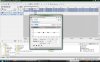
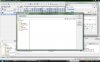
1. Drag your first track into the software. It should automatically ask you if you would like to BeatMap this track or not. Click Yes.
2. To beatmap this track, you need to find out where the first beat starts and put your cursor line there exactly. Zoom in, to get even more precise. The beginning of the wave length is the best spot. You can even choose a beat further in the song if you feel that the true beat has not started yet. Remember you only want to start at the "TRUE BEAT".
3. Click next, now you need to set the loop. Drag the barrier cursors until you find the loop that will repeat throughout the song. trial and error work here, but make sure you try to be as exact as possible so that the beatmapper can find the right BPM (beats per minute). Click next once done.
4. Now the beatmapper will allow you to hear the metronome on the beat throughout the song...fast forward a bit to make sure the metronome stays consistent with the beat. If it falls off slightly, don't worry, we can fix this later, but if it falls off a lot go back to Step 2 and retry your loop.
5. Click next, and then finish. Now your track is beatmapped. Look closely at the BPM on the bottom of the screen (it will give you something like 105.XXX). You may want to adjust this so its near a whole number, most modern tracks are recorded computerized so if it says 105.234 its usually just 105 and you can adjust this in the Clip properties window and then under the stretch tab and choose the original BPM as 105.
6. Drag your second track in and repeats step 2 through 4.
7. Acid 6.0 will automatically attempt to layer the second track to match the BPM of the first track. usually this works pretty. IT WORKS BEST when your BPM's of the 2 tracks are similar (i..e 105 and 105 or 105 and 110 or 105 and 100). This way you don't have to speed up or slow down the song too much.
8. Finally, we need to work on pitch. This is where most mixers make their mistakes...they think pitch doesn't matter or don't know about it. It does matter if you want a high quality well sounding mix. You have to play around and it requires a bit of ear.
9. On the second (or first track, whichever you want to pitch shift), Go to clip properties and then the Stretch tab. Choose Root Note, and begin to go up and down the scale
10. Everytime you change the root note, listen to the mix and see if it sounds good. you may want to use a guitar or piano to see the key in which the original song lies. You have to mess around considerably with this until you get the perfect pitch matched.
11. Final edits...your beats may not match exactly...but this is okay. Just go find where you loop starts going off, cut it there and slide it to adjust it. You may have to do this several times throughout the mix, but the cuts should be small enough that it shouldn't make a significant difference.
12. Finally- EQing your tracks. If you click on one of your track's FX button (the little green lantern thingy) it will bring up the Track EQ effects. You'll see a 1, 2, 3, 4 buttons. Those are your Bass, Mids, and Highs respectively. To lower the bass, simply bring 1 down all the way. To raise the vocals, simply raise the 4 higher. You can mess around with these to get the perfect sound.
Okay, if you have questions, let me know and I'll gladly answer.
HERE IS AN EXAMPLE:
I'm mixing Batuaa (Original) with Lil Jon and Eastside Boyz "What u gona do" instrumental
1. Beatmap Batuaa - When I did it, it came out to around 82.0 BPM (Instruction 1)
2. Beatmap What u gona do - I got 74.697 or cloase to 75 BPM (Instruction 2)
3. I wanted the hip hop instrumental to be sped up to Batuaa, so i right clicked on Batuaa, then Paint clip, and then Use Original Tempo of 82.0 BPM. Now the hip hop song has sped up to match Batuaa (Instruction 3)
4. You thought you were done right? Not a chance - you need to check the pitch. I didn't want to change Batuaa's pitch, so I went to change the hip hop song's pitch. At this point I moved the hip hop song over batuaa, so that the hip hop song's melody lines came into play, thus allowing me to switch the pitch and hear what sounded good. To do this, I go to Clip properties of What u gonna do, go to stretch and then start messing with the root note so that the whistling sound matches the tumbi. I start at A and work my way up...until I find that it sounds good at root note E. Obviously this is totally up to you, as to what sounds good and what doesn't. (Instruction 4)
5. Finally cut it up and mix it how you like and ur done. In this case, I will do some Track Eqing, by lowering the bass on Batuaa, and lower the highs on the hip hop song so that they sound better together. Maybe even add some echoo echoo echoo echoo on batuaa for fun. (Instruction 5)
1. Drag your first track into the software. It should automatically ask you if you would like to BeatMap this track or not. Click Yes.
2. To beatmap this track, you need to find out where the first beat starts and put your cursor line there exactly. Zoom in, to get even more precise. The beginning of the wave length is the best spot. You can even choose a beat further in the song if you feel that the true beat has not started yet. Remember you only want to start at the "TRUE BEAT".
3. Click next, now you need to set the loop. Drag the barrier cursors until you find the loop that will repeat throughout the song. trial and error work here, but make sure you try to be as exact as possible so that the beatmapper can find the right BPM (beats per minute). Click next once done.
4. Now the beatmapper will allow you to hear the metronome on the beat throughout the song...fast forward a bit to make sure the metronome stays consistent with the beat. If it falls off slightly, don't worry, we can fix this later, but if it falls off a lot go back to Step 2 and retry your loop.
5. Click next, and then finish. Now your track is beatmapped. Look closely at the BPM on the bottom of the screen (it will give you something like 105.XXX). You may want to adjust this so its near a whole number, most modern tracks are recorded computerized so if it says 105.234 its usually just 105 and you can adjust this in the Clip properties window and then under the stretch tab and choose the original BPM as 105.
6. Drag your second track in and repeats step 2 through 4.
7. Acid 6.0 will automatically attempt to layer the second track to match the BPM of the first track. usually this works pretty. IT WORKS BEST when your BPM's of the 2 tracks are similar (i..e 105 and 105 or 105 and 110 or 105 and 100). This way you don't have to speed up or slow down the song too much.
8. Finally, we need to work on pitch. This is where most mixers make their mistakes...they think pitch doesn't matter or don't know about it. It does matter if you want a high quality well sounding mix. You have to play around and it requires a bit of ear.
9. On the second (or first track, whichever you want to pitch shift), Go to clip properties and then the Stretch tab. Choose Root Note, and begin to go up and down the scale
10. Everytime you change the root note, listen to the mix and see if it sounds good. you may want to use a guitar or piano to see the key in which the original song lies. You have to mess around considerably with this until you get the perfect pitch matched.
11. Final edits...your beats may not match exactly...but this is okay. Just go find where you loop starts going off, cut it there and slide it to adjust it. You may have to do this several times throughout the mix, but the cuts should be small enough that it shouldn't make a significant difference.
12. Finally- EQing your tracks. If you click on one of your track's FX button (the little green lantern thingy) it will bring up the Track EQ effects. You'll see a 1, 2, 3, 4 buttons. Those are your Bass, Mids, and Highs respectively. To lower the bass, simply bring 1 down all the way. To raise the vocals, simply raise the 4 higher. You can mess around with these to get the perfect sound.
Okay, if you have questions, let me know and I'll gladly answer.
HERE IS AN EXAMPLE:
I'm mixing Batuaa (Original) with Lil Jon and Eastside Boyz "What u gona do" instrumental
1. Beatmap Batuaa - When I did it, it came out to around 82.0 BPM (Instruction 1)
2. Beatmap What u gona do - I got 74.697 or cloase to 75 BPM (Instruction 2)
3. I wanted the hip hop instrumental to be sped up to Batuaa, so i right clicked on Batuaa, then Paint clip, and then Use Original Tempo of 82.0 BPM. Now the hip hop song has sped up to match Batuaa (Instruction 3)
4. You thought you were done right? Not a chance - you need to check the pitch. I didn't want to change Batuaa's pitch, so I went to change the hip hop song's pitch. At this point I moved the hip hop song over batuaa, so that the hip hop song's melody lines came into play, thus allowing me to switch the pitch and hear what sounded good. To do this, I go to Clip properties of What u gonna do, go to stretch and then start messing with the root note so that the whistling sound matches the tumbi. I start at A and work my way up...until I find that it sounds good at root note E. Obviously this is totally up to you, as to what sounds good and what doesn't. (Instruction 4)
5. Finally cut it up and mix it how you like and ur done. In this case, I will do some Track Eqing, by lowering the bass on Batuaa, and lower the highs on the hip hop song so that they sound better together. Maybe even add some echoo echoo echoo echoo on batuaa for fun. (Instruction 5)
Attachments
-
185.6 KB Views: 125
-
203.6 KB Views: 99
-
185.6 KB Views: 105